A two-minute read before your first lesson. The classroom runs in your browser: nothing to install, no links to send, and the lesson, whiteboard and messages stay with the booking. Parent or pupil? Read this version instead.
If you only do two things
Run the setup check on the computer you will teach from. It takes a minute and tells you exactly what to fix.
Open the Practice room from your session page the day before and try the whiteboard and screen share on your own. Nobody else can see it.
Before the lesson
Use a laptop or desktop with Chrome, Edge, Firefox or Safari. A phone works for the pupil, but teaching from one is hard: the whiteboard and screen share want a bigger screen. Plug in if you can, and close other video apps.
Prefer Zoom or Teams? You can use them if you and the family would rather. The built-in classroom is the default because there is nothing to install, no time limit, and the whiteboard and lesson record are saved to the booking. If you use something else, share the link through platform messaging; the booking, payment and messages stay here. Zoom's free plan ends calls at 40 minutes.
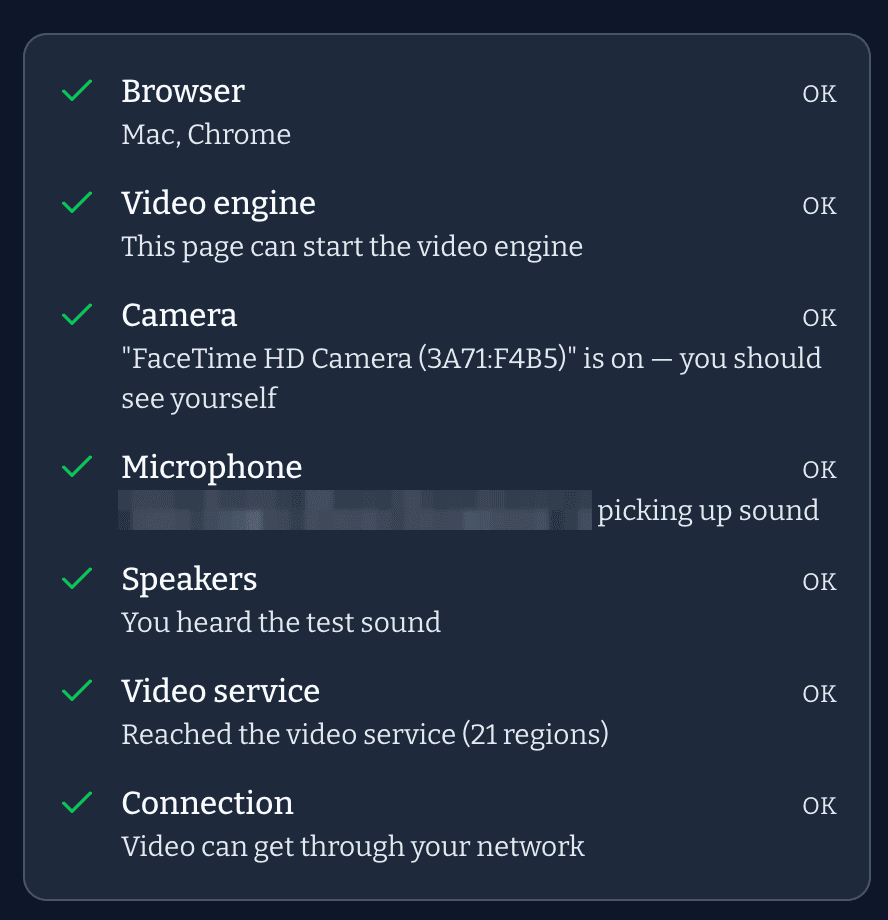
The setup check tests your browser, camera, microphone, speakers and connection, and shows you what it will look like when everything passes:
Everything ticked. If a line is red it tells you what to change, and the camera and microphone guide has the steps for every browser and phone.
The practice room. On your session page, before the lesson, there is a Practice room button. It opens the same classroom with only you in it, so you can try sharing your screen, drawing on the whiteboard and using the chat without an audience. It closes itself after 30 minutes.
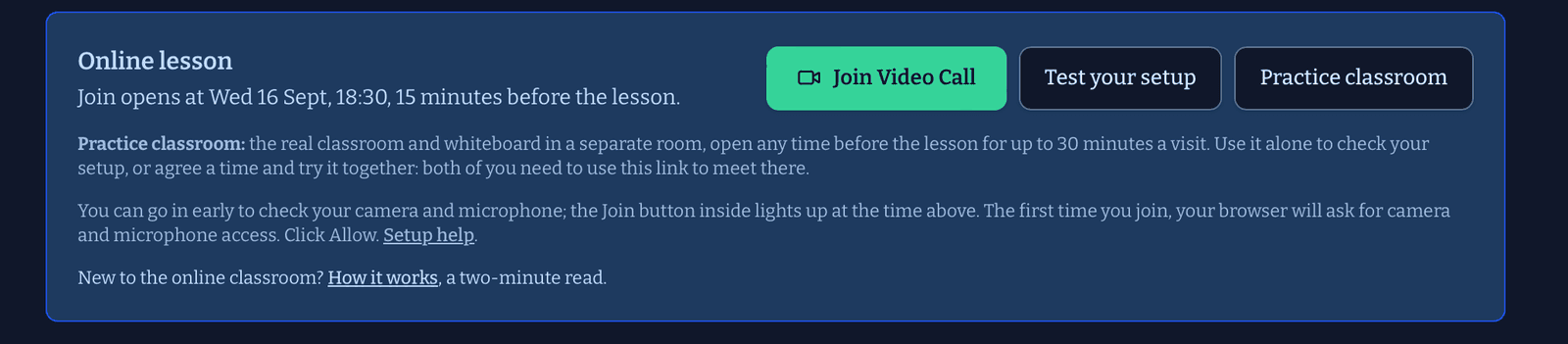
The Online lesson panel at the top of every session page. Join lights up 15 minutes before the start; Test and Practice work any time before.
Joining
The Join session button on your session page switches on 15 minutes before the start time. It first runs the same checks as the setup check, then lets you in. If the pupil has not arrived yet you will see Waiting for … to join; that is normal. If anything fails, the classroom says so straight away rather than leaving you waiting.
The pupil gets a reminder email the day before with their own Join button. They do not need an account of their own: their parent's account is the one that joins.
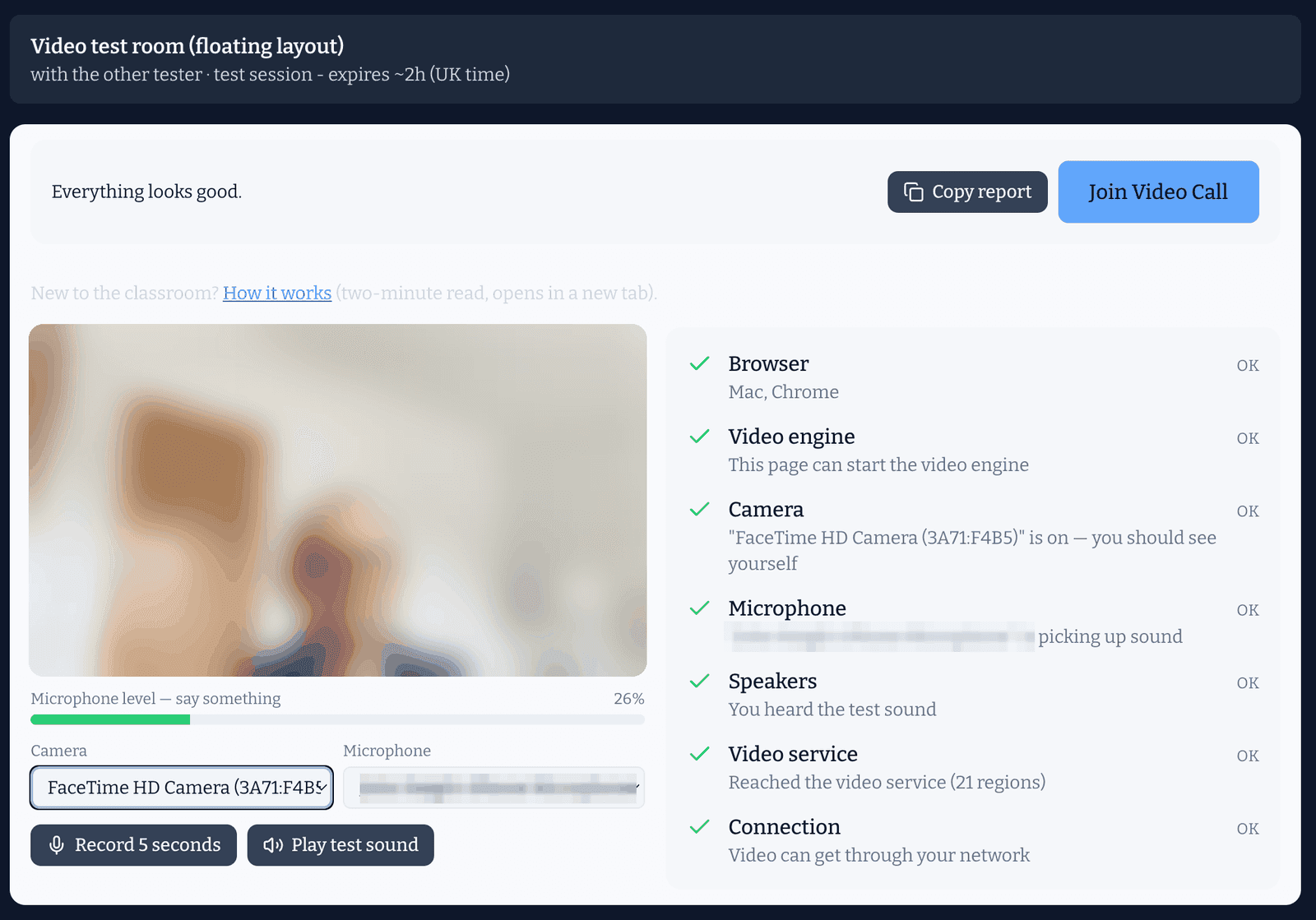
The lobby. You see yourself, the meter moves when you speak, every line is green, and Join Video Call is lit.
During the lesson
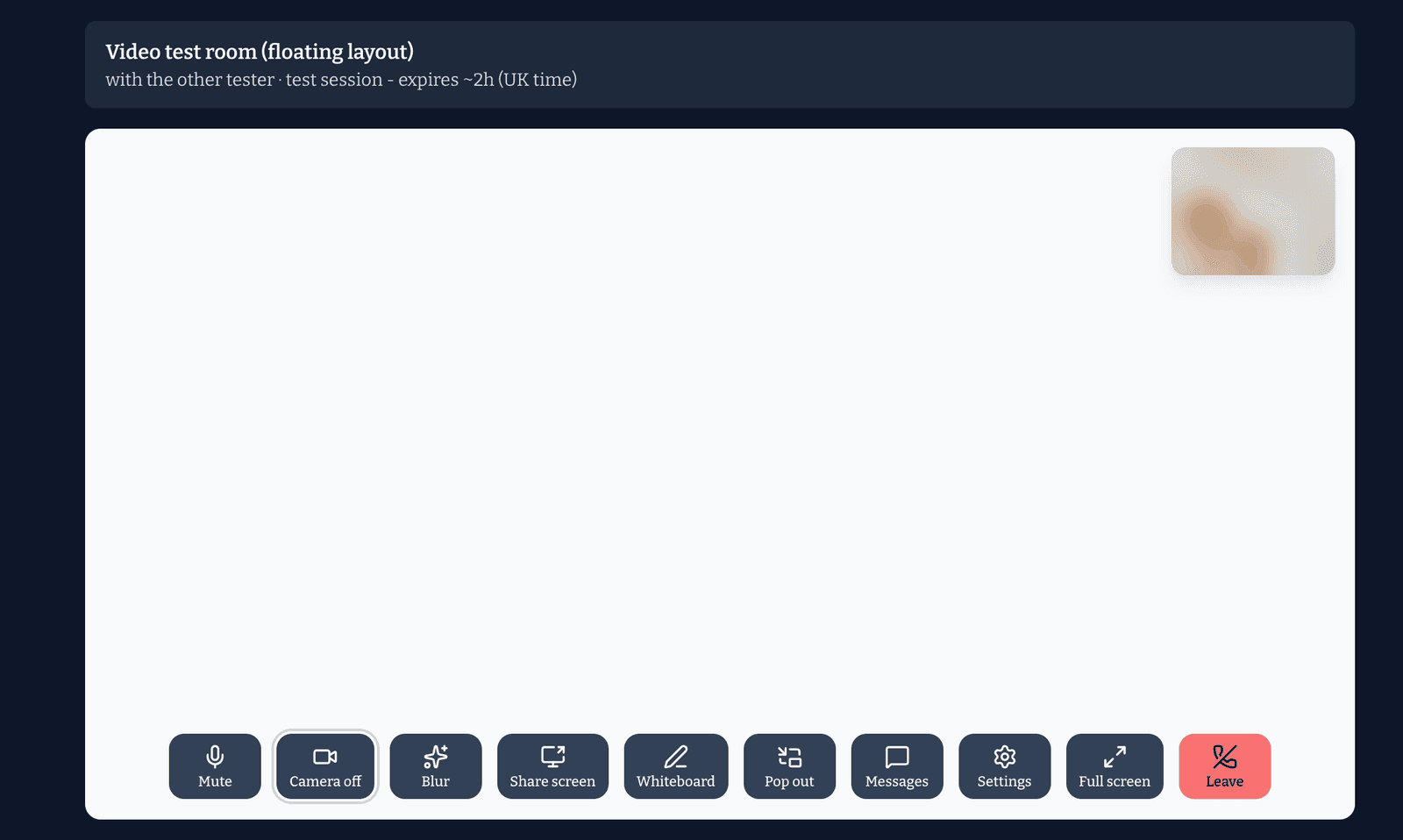
The controls sit along the bottom of the screen, each labelled:
The classroom before the other person arrives. Your own video sits top right; every control along the bottom is labelled.
Mute and Camera off do what they say; they turn red when off.
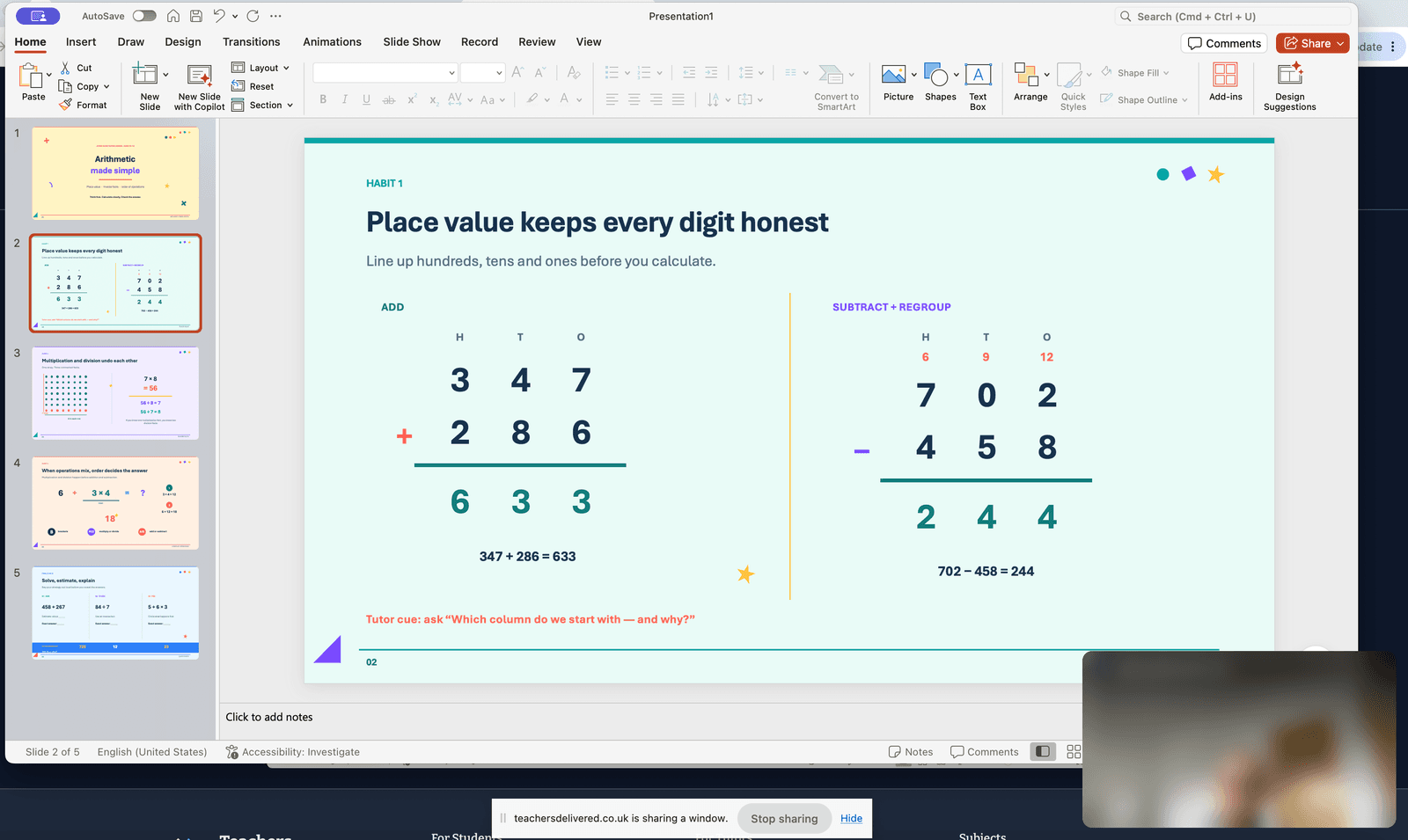
Share screen shows the pupil a window or your whole screen. For slides, run them in a window rather than full screen so you can still see the pupil; the permissions guide shows the share dialog.
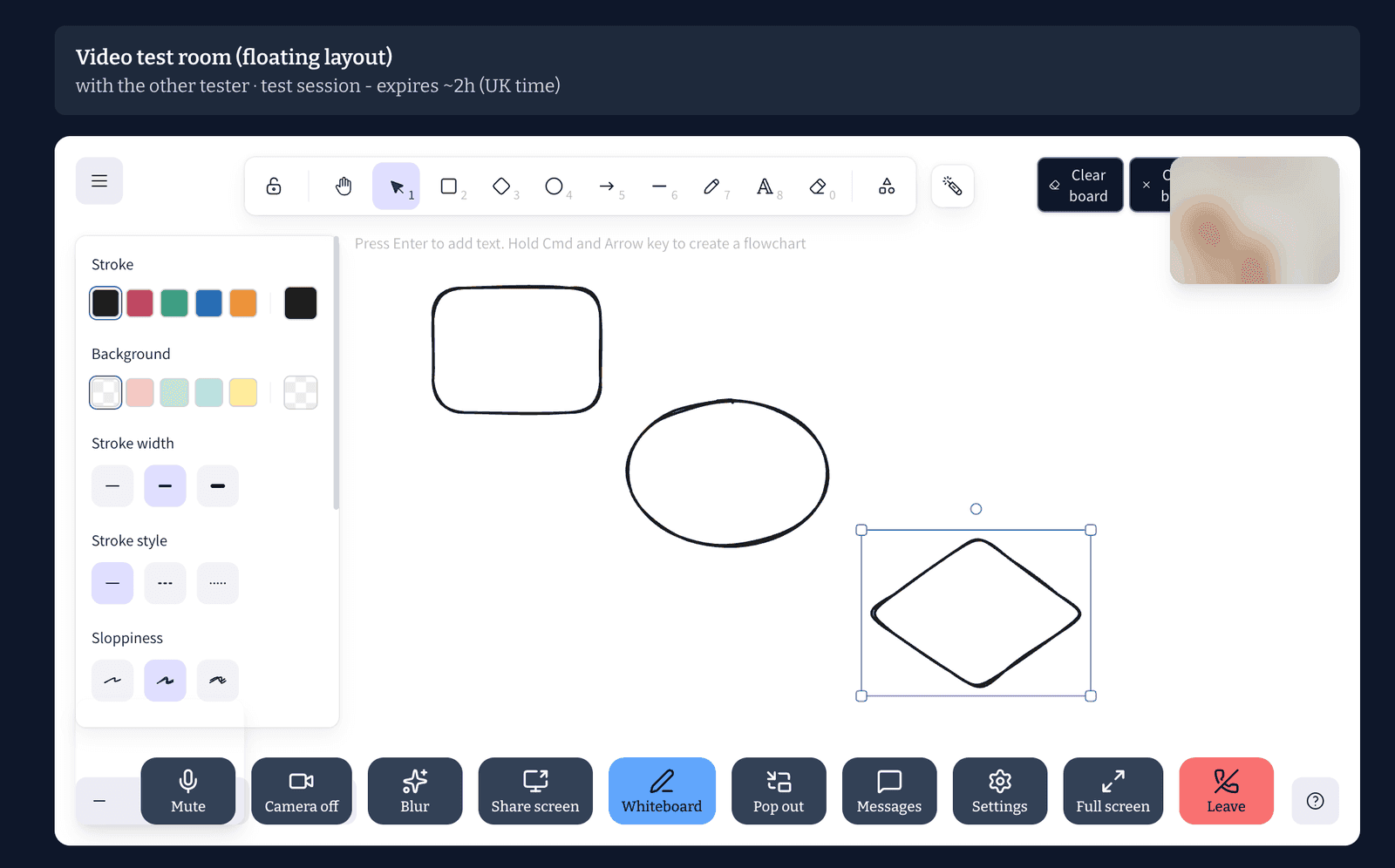
Whiteboard opens a shared board you both draw and type on, with pens, shapes, text and an eraser. It is saved to the booking and you can both open it again from the session page after the lesson. Use a digital pen. A mouse is fine for shapes and typed text, but handwriting, working, annotation and diagrams need a pen, whatever the subject: a basic graphics tablet costs from about £30, and an iPad with a pencil works too. Parents notice the difference, and one has already asked us to make it standard.
Pop out floats the pupil's video on top while you present full screen.
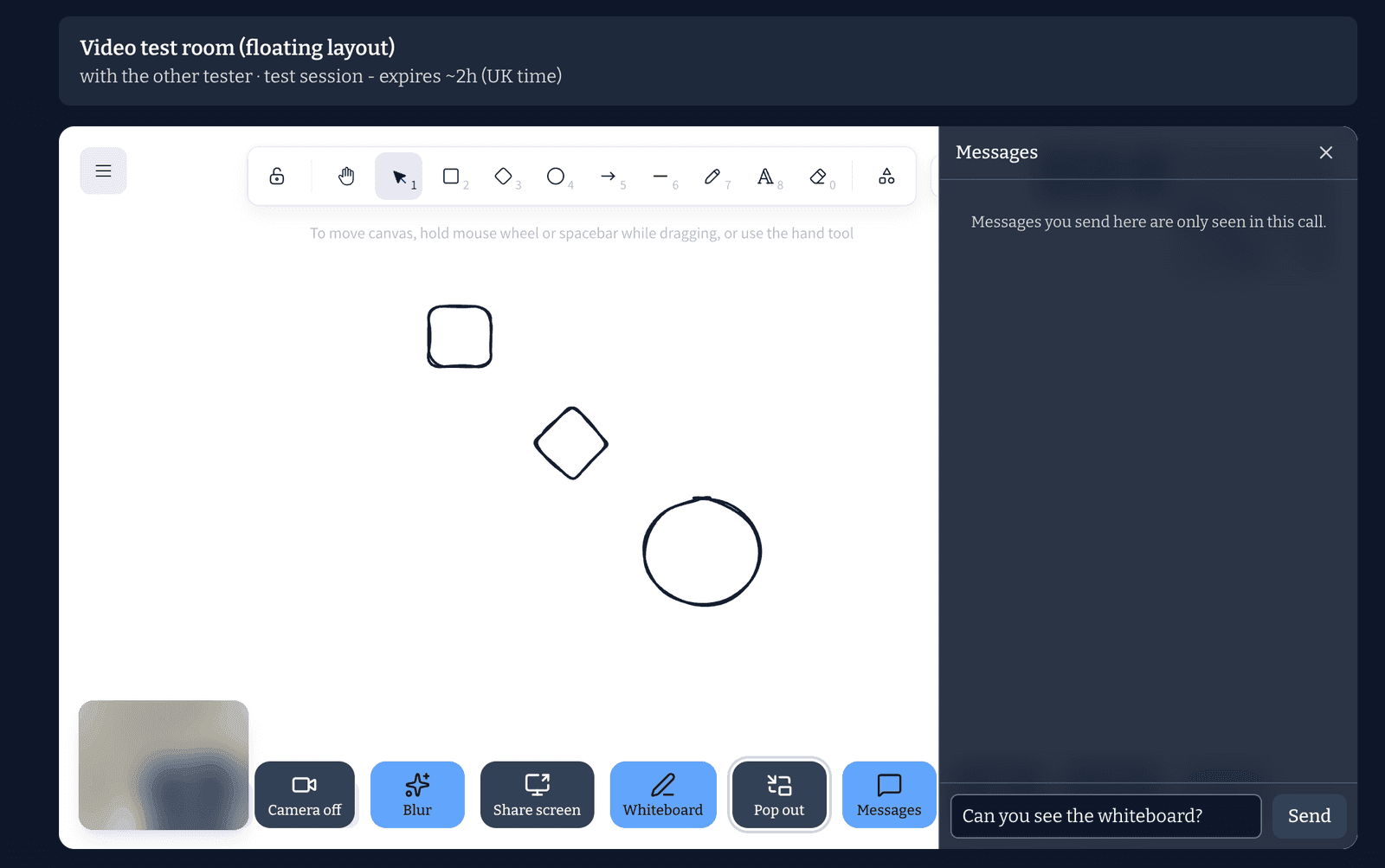
Messages is a text chat for the lesson: useful for sending a link or a spelling.
Blur softens your background. Settings switches camera or microphone.
Leave ends the call for you. The lesson record stays on the session page.
The shared whiteboard. Shapes, pens, text and an eraser along the top; both of you draw on the same board.Sharing a slide deck. The pupil sees the window you chose; Pop out keeps their video floating on top so you can still see them.Messages: a text chat for the lesson, only seen in this call. Handy for a link or a spelling.
Nothing is recorded. Lessons are 60 minutes; the classroom stays open a little after the end so you can finish a sentence.
If something goes wrong
No camera or microphone: the checklist names the fix. Nine times out of ten it is the browser permission or another app holding the camera. The camera and microphone guide covers every browser and phone.
Stuck on Waiting or a black screen: reload the page with the browser's reload button (not the back button) and click Join again. Your place in the lesson is kept.
The pupil cannot get in: ask the parent to run the setup check on the device they are using, and to send you the report it produces with the Copy report button.
Still stuck: message the family through the site and tell us. We read every report.
Something unclear on this page? Tell us and we will fix the words.